One place for daily links
Work links, bills, streaming, games, and news sit on a single start page.
Personal Homepage
A personal start page for the tiles and links you open every day. Work, bills, streaming, games, and news, arranged by you.
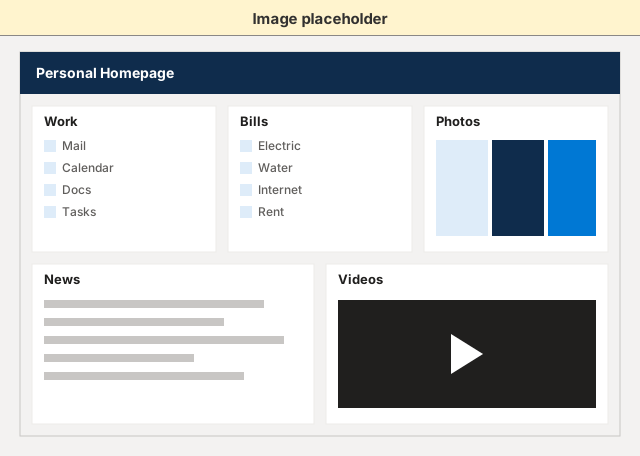
Keep the things you open every day on one page.
Work links, bills, streaming, games, and news sit on a single start page.
Place each tile where you want it and resize it. The layout stays yours.
The extension drops the page you are on onto this homepage.
The tiles this homepage is built around.
Groups of shortcuts, including pages the extension saves.
Photos that rotate on a tile.
A feed limited to words you include or skip.
A queue of videos on the homepage.
Save the tab you are viewing onto a link tile.
Open the same tiles and links on your phone.
Open the page, add tiles, then tell the browser to start there.
Edge uses the same addresses, chrome://settings/onStartup and chrome://settings/appearance. Firefox uses about:preferences#home. A normal website cannot open chrome:// URLs. The extension can.
Tell Chrome to open this page on startup. A normal extension cannot replace that setting for you.
Optional: under Appearance, turn on Show home button and set the custom address to the same page.
In Firefox, open Home settings (about:preferences#home), set Homepage and new windows to Custom URLs, and paste the same address. If Firefox is set to open previous windows, turn that off when you want this page at every start.
A normal website cannot open Chrome’s settings. Use the Personal Homepage extension button, or paste these addresses into the address bar: chrome://settings/onStartup and chrome://settings/appearance. Edge uses the same two addresses.
http://localhost:3000/homeCompare Free, Plus, and Family. Get started opens the existing sign-in. This page does not take payment or assign a plan.
$0
A personal start page
$4 a month
Carousel, feeds, video, and the phone app
$8 a month
A homepage for each person
The homepage and the extension work in Chrome, Microsoft Edge, and Firefox. Safari is not supported for the extension in v1.
A normal website cannot open chrome:// URLs. You set On startup yourself: open Chrome’s On startup settings, select “Open a specific page or set of pages”, choose “Add a new page”, and paste your homepage address. The extension can open those settings. It cannot flip the On startup choice for you.
Edge uses the same addresses as Chrome: chrome://settings/onStartup and chrome://settings/appearance. Firefox uses about:preferences#home. Set Homepage and new windows to Custom URLs and paste your homepage address. If Firefox opens previous windows, turn that off when you want this page every time.
The extension can save the current page onto the homepage, import bookmarks, and open the browser’s startup and home-button settings. It cannot replace Chrome’s On startup choice on its own. The website itself cannot open chrome:// pages.
The phone app signs in to the same account and shows your tiles and links. Opening this page when the browser starts is still a Chrome, Edge, or Firefox setting.